How to create a Hytale server store
A step-by-step setup for a Hytale server store: products the policy allows, payments, the delivery plugin, product commands and a test purchase.

Tanz
5 min read
A Hytale server store has five parts: products the game's policy allows, a store platform, a payment provider, a plugin on the server that receives purchases, and the command each product runs. This guide sets them up in order, with Gamecart as the worked example. Other platforms follow the same path with different menu names.
Menu names below match the Gamecart docs.
1. Decide what to sell within the policy
Hytale has its own monetization rules, the Server Operator Policies. The full breakdown is in how to monetize a Hytale server. For your catalog, four points matter most:
- Cosmetics, subscriptions, paid access and donations are allowed, as long as price and terms are clear before payment.
- Gameplay-affecting items can be sold on Teen and Mature servers, tagged as such.
- Paid random items (crates, loot boxes) are banned on All Ages servers. Elsewhere they need numeric odds, expected cost disclosures and 12 months of records, so leave them for later if you are just starting.
- Your refund policy and key purchase terms have to be visible before checkout.
Every product description should say what the player gets, for how long, and whether it affects gameplay. A 30-day rank with a chat tag, a building kit and access to a decorative area is an easy first product to explain.
2. Pick where the store runs
You can build your own site with a checkout and a server integration, or use a hosted platform that already handles checkout, payments and delivery.
At least two hosted platforms have a dedicated Hytale plugin: Gamecart, and Tebex, which documents its Hytale integration. The biggest difference between them is how the money moves; Gamecart vs Tebex compares them with sources for each side. If this is your first store, how to create a store for your server covers the decisions that come before the technical setup.
Gamecart takes no commission on sales, and payments go to your own account with each provider. The Free plan allows up to 3 categories, 20 products and 3 servers, on a gamecart.gg subdomain.
3. Create the store
- Go to dash.gamecart.gg, click Sign up and confirm your email with the 6-digit code.
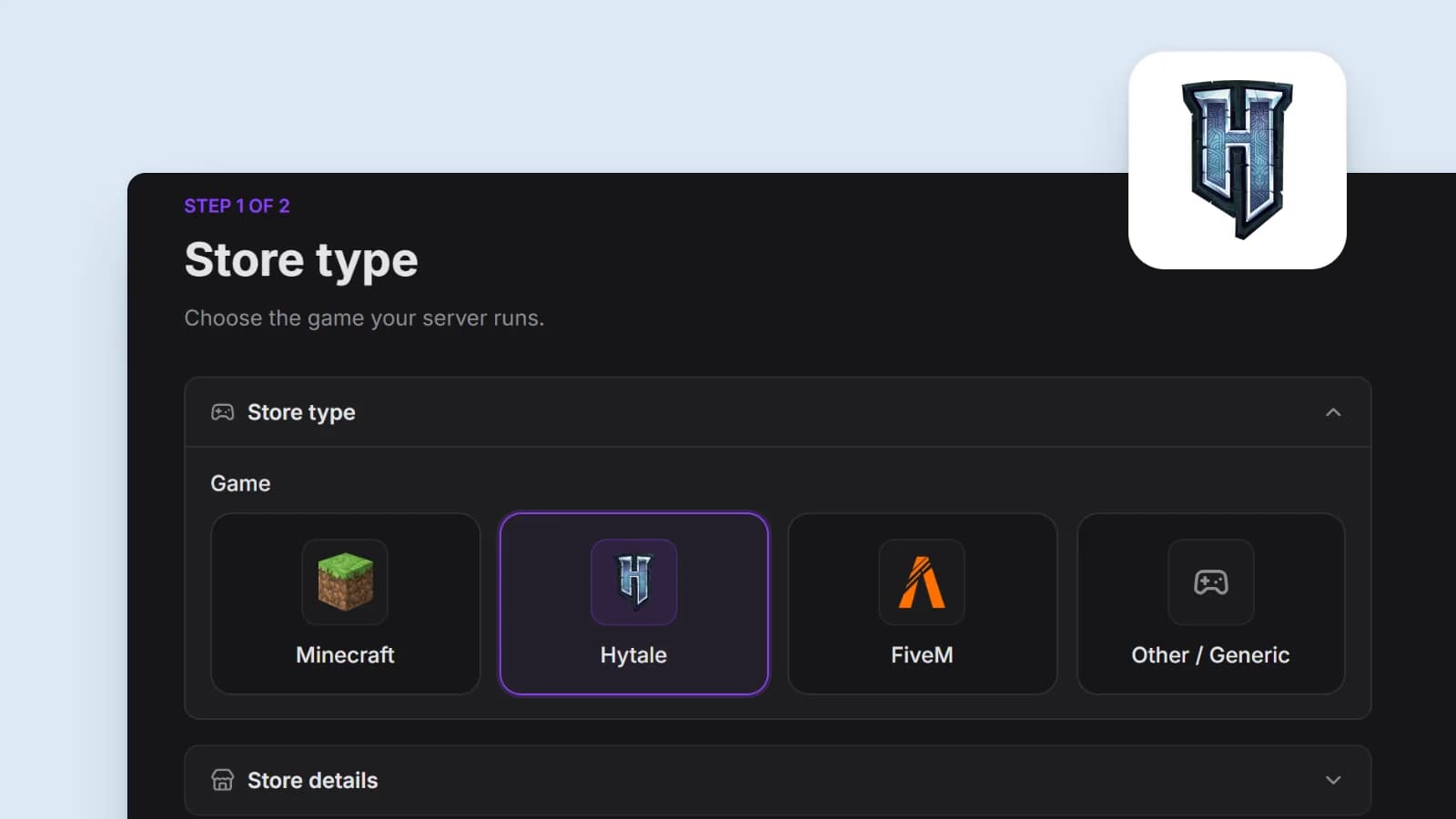
- In the store setup, pick Hytale under Game. The game decides the delivery methods and can't be changed later.
- Enter the store name (3 to 32 characters), the currency and the subdomain, such as
myserver.gamecart.gg. - Click Create Store.
Warning
The currency can't be changed after the store is created. The options are USD, BRL, EUR and GBP. Pick the one most of your players pay in.
4. Add categories and products
Every product belongs to a category, so start there.
- Open Your store > Products, click Add and select Category. Name it, for example
Ranks. - Click Add again and select Product.
- Fill in the name, category, description and price.
- For a 30-day rank, enter
30in Duration. Leave it empty for a permanent product. - Click Create product.
For donations, Buyer chooses the price turns the price into a minimum, suggested amount, and the buyer can pay more.
5. Set up payments
- Open Settings > Gateways and click Add gateway.
- Find the provider and click Add.
- Paste the credentials from your provider account and click Save Configuration.
- Turn on the row's switch. New gateways start disabled, and Gamecart checks the credentials before enabling one.
Stripe (cards and wallets) and PayPal work in any store currency. The list order is the order buyers see at checkout, so put the method most of your players use first.
6. Connect your Hytale server
First, create the connection in the dashboard:
- Open Integrations > Servers and click Create Server.
- Under Delivery method, choose Plugin, the only delivery method for Hytale.
- Name it, for example
Survival, and click Create server. - Click Copy token on the server's row.
Then install the plugin. The Hytale executor page lists the Java version and Hytale server release it needs; check them before you install.
- Download
gamecart-hytale.jarfrom the link in the docs and copy it into the server'smods/folder. - Start the server once to generate
mods/Gamecart_Gamecart/config.properties. - Open that file and paste the token into
serverToken. - Restart the server or run
gamecart reloadfrom the console.
serverToken=
apiUrl=https://api.gamecart.gg
pollIntervalSeconds=15
debug=false
Run gamecart status in the console to check it. The command shows the plugin version, connector state and last poll.
Warning
Use each token in exactly one installation. If two servers share a token, either one can receive a command meant for the other. Never show the token in screenshots, logs or support messages.
7. Configure delivery commands
A command is what your server runs when a purchase is approved. Gamecart uses {identifier} in place of the player, filled with the name the buyer entered at checkout.
- Open the product in Your store > Products and scroll to Commands.
- Click New command and choose when it runs: On Purchase, On Expiration or On Dispute.
- Select the server that receives it.
- Type the console command, without a leading slash.
- Click Save.
The exact syntax depends on how your server handles groups and permissions. The reliable way to get it right: run the command in the console with your own player name, confirm it works, then replace your name with {identifier}.
For the 30-day rank, that becomes two commands: one on On Purchase that adds the player to the rank group, and one on On Expiration that removes them when the time runs out. A third on On Dispute takes the rank away if the payment is disputed, refunded or cancelled.
The gear icon on each row has two options. Offline delivery lets the command run while the player is offline. Ignore quantity runs it once even if the buyer orders more than one unit.
8. Run a test purchase
Test before you announce the store. The Manual gateway lets you do it without real money:
- In Settings > Gateways, add Manual, write any instructions and turn it on.
- Create a test product with the same command as your rank.
- Buy it from your storefront with your own player name and the Manual gateway.
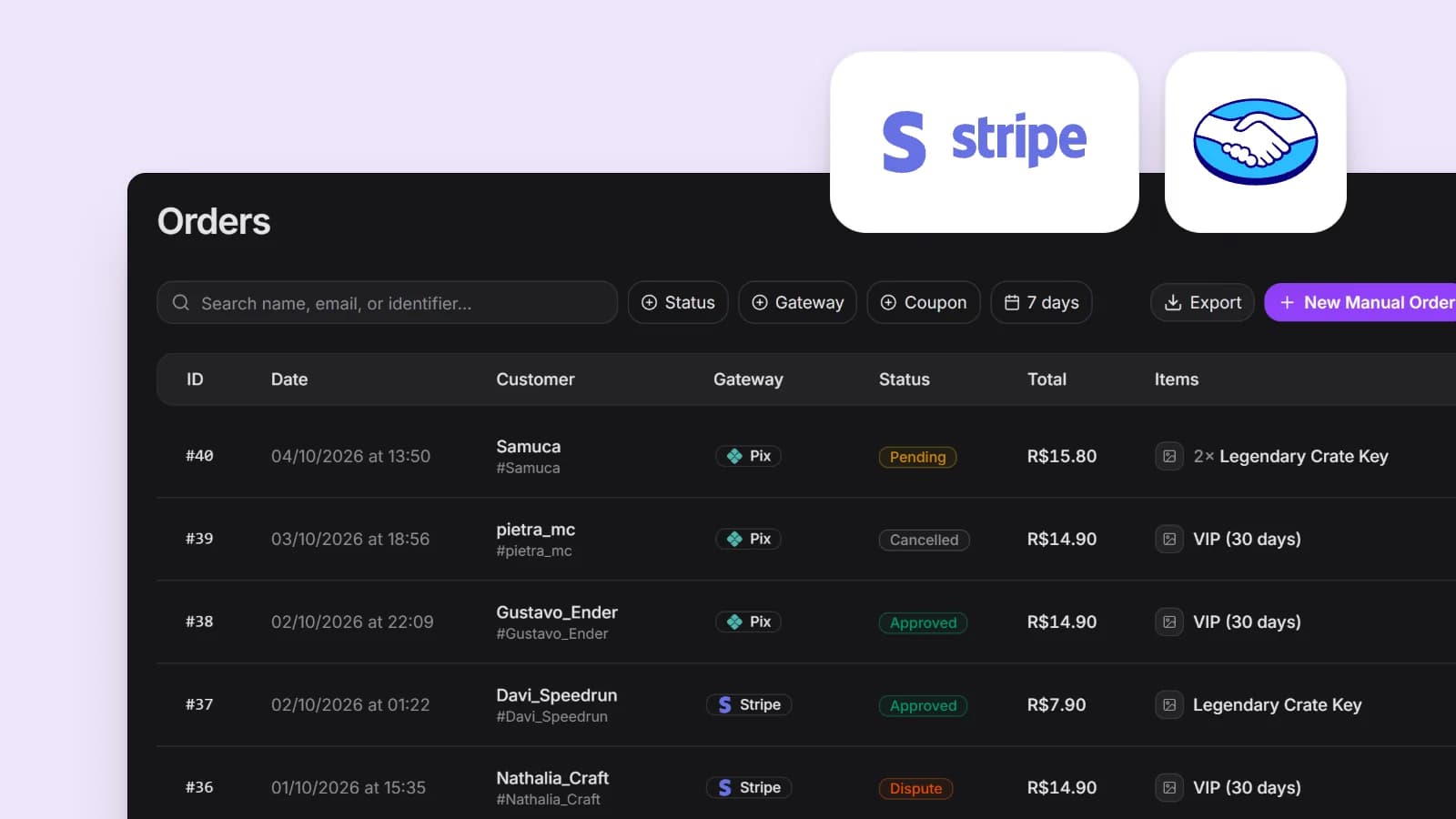
- Open the order in Sales > Orders and click Approve. Delivery starts after approval.
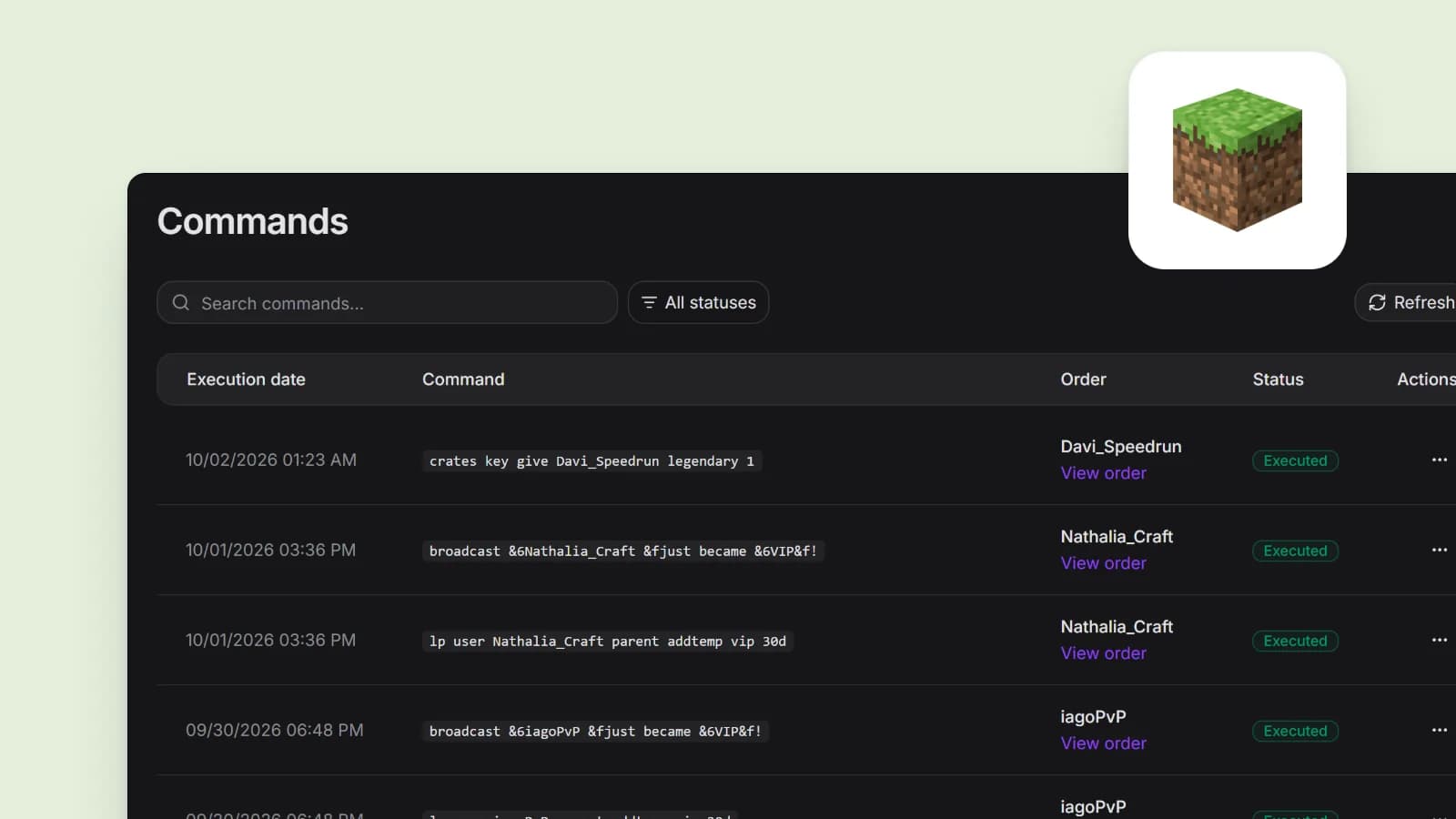
- Watch Integrations > Commands, then check in game that the rank was applied.
Turn the Manual gateway off afterwards, or buyers will see it at checkout too. To test the full money path, make a small purchase through your real gateway.
Tip
Executed only means Gamecart recorded the delivery. Join the server and check the result.
9. When a delivery doesn't arrive
Integrations > Commands shows the state of every command:
| Status | Meaning |
|---|---|
| Scheduled | Queued, waiting for the plugin to pick it up |
| Processing | The plugin is handling it; wait for a final state |
| Executed | Delivery recorded as complete |
| Failed | The command couldn't complete; read the error shown |
Common problems and where to look first:
| Symptom | What to do |
|---|---|
| Plugin doesn't poll | Check the token, the HTTPS apiUrl and the server log, then run gamecart reload |
| Plugin is in backoff | A network error or a 408, 429 or 5xx response; it retries on its own after a capped wait |
| Plugin stopped after an error | Invalid credentials or configuration; fix them, then run gamecart reload or restart |
| Command failed | Run the same command in the console with the player's name in place of {identifier} and read the error |
Warning
Resend creates a new delivery attempt and can repeat a command that already ran. Before resending, check in game whether the player already got the item, and make sure only one plugin installation uses that token.
10. List the server in Discovery
Discovery is Hytale's official in-game server browser. You submit your server from Server Profiles in your Hytale account, and each listing goes through moderation, according to Hypixel's announcement.
To be listed, the policy asks for public links to your website or store, privacy policy, refund policy and support contact. Once the store is live you have the first link. Write the other three before you submit.
Sources

About the author
Tanz
Founder of Gamecart, the store platform for Minecraft, Hytale, FiveM, and other game servers.
Open your server store
Create a free Gamecart store, connect your server, and deliver purchases automatically.