How to create a store for your game server
A step-by-step guide to deciding what to sell, where the store runs, how players pay and how each purchase reaches your game server on its own.

Gamecart Team
3 min read
Creating a store for your server comes down to five decisions: what your game lets you sell, which products to offer, where the store runs, how players pay and how each purchase reaches the server. The steps below take them in the order you will face them. Done well, a store helps pay for hosting, plugins and staff time. Done badly, it pushes players away.
1. Check your game's rules
Read what your game allows before you list a single product. For Minecraft, the "Servers and hosting" section of the Minecraft Usage Guidelines covers what a server may charge for.
Two of its rules shape almost every store. You can sell entitlements that affect gameplay only if they "don't ruin other players' experience or give a competitive advantage in the game". And you have to show "all the content and pricing applicable to your server before a person joins, signs up, or signs in". The guide to what you can sell on a Minecraft server goes through ranks, cosmetics, currency and donations case by case.
FiveM works differently. The FiveM documentation calls Tebex "the exclusive monetization partner of FiveM" and says "the use of any other platform or payment provider is prohibited and is a violation of the Platform License Agreement". On FiveM, the choice of store platform is already made for you.
Other games and hosting providers have their own terms. Read each one before the store opens.
Warning
A broken rule can cost more than the store will ever earn. If you are unsure about a product, ask the game's support before you sell it.
2. Decide what to sell
The most common products on game servers are:
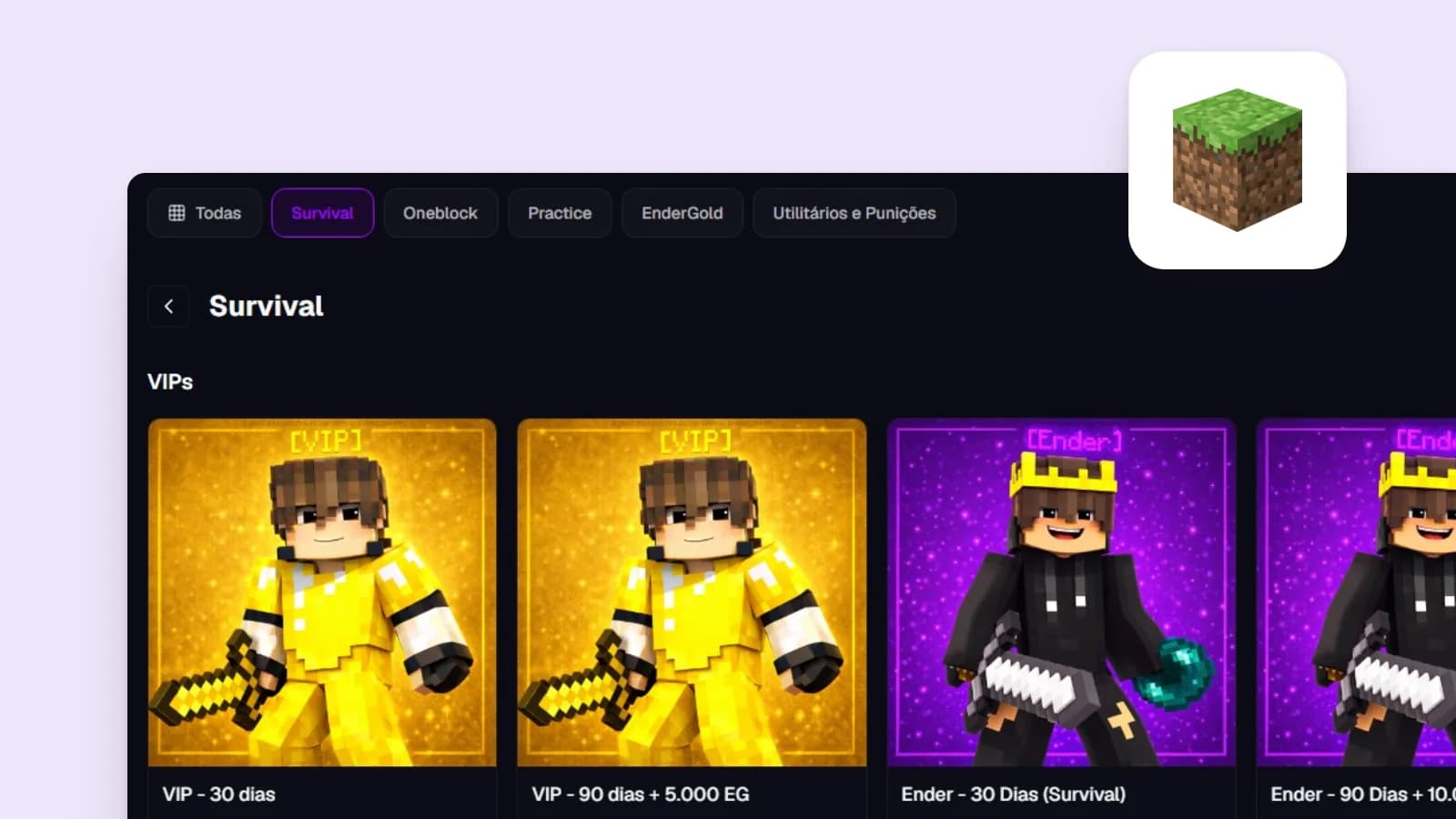
- ranks, timed or permanent;
- items and kits delivered in game;
- server currency for the in-game economy;
- access, such as early entry to a new season or roles on your Discord;
- cosmetics that change how a player looks without touching game balance.
Start with a few products and clear descriptions. Saying exactly what the player gets, for how long and on which game mode heads off a lot of support tickets.
3. Choose where the store runs
There are two main paths.
| Path | For | Against |
|---|---|---|
| Your own store (site and checkout you build) | Full control over the look and the rules | You maintain the code, the security and every payment integration |
| A hosted store platform | Checkout, payments and delivery ready to use | You work within the platform's features and plans |
For most servers, a hosted platform saves the most time. Gamecart is one of the options: the Free plan covers up to 3 categories, 20 products and 3 servers on a gamecart.gg subdomain, and a custom domain starts with the Pro plan, as the pricing section shows. Gamecart takes no commission on sales, so the costs are the plan and your payment provider's fees. Compare the alternatives on what your server needs today.
4. Set up payments
Pick payment methods for where your players live. For an international audience, cards and PayPal are the usual starting point. If most of your players are in Brazil, they will expect Pix.
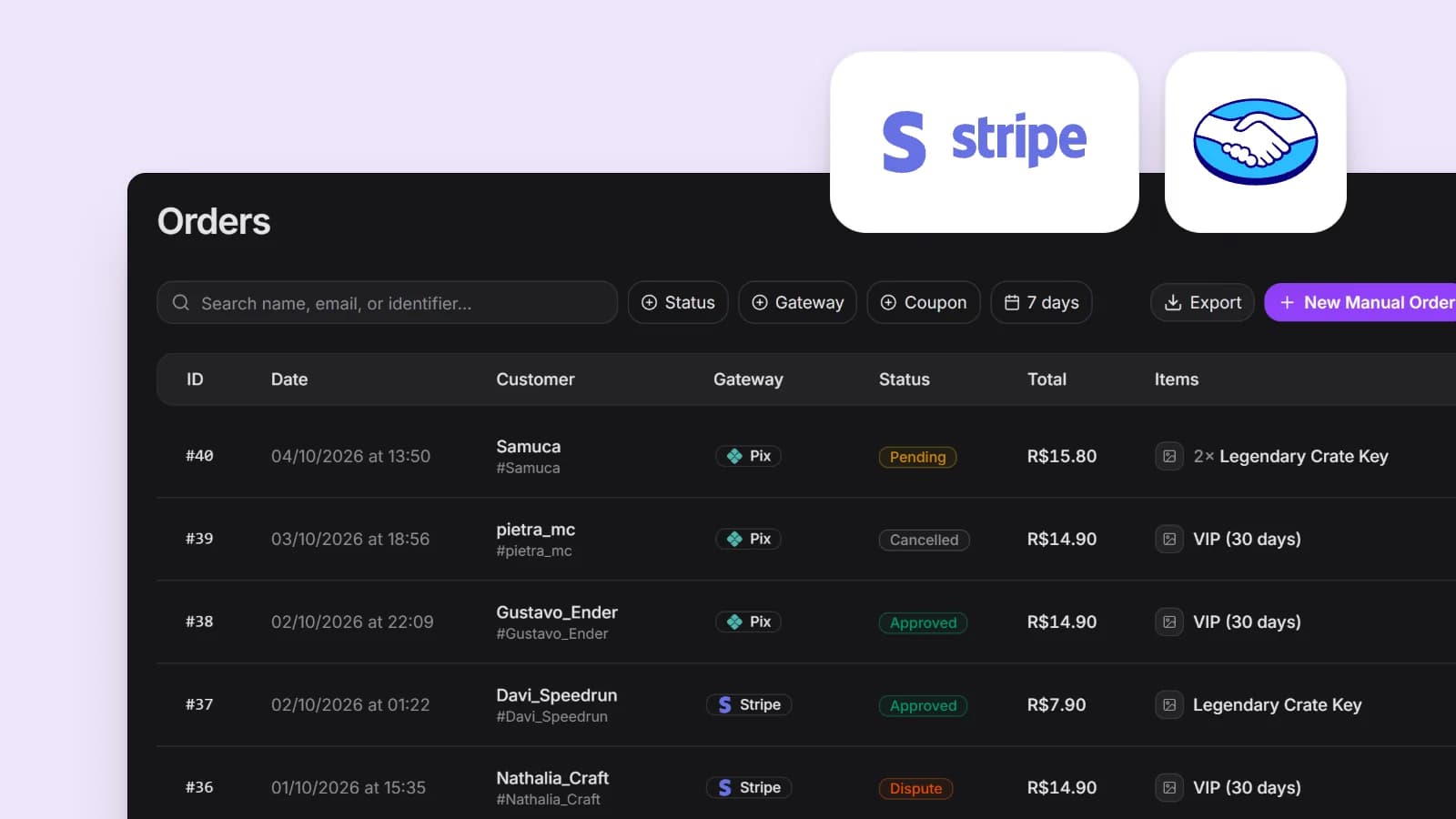
On Gamecart, Stripe and PayPal work in any store, and each payment goes straight to your own account with the provider. Pix and Mercado Pago are only available to stores that sell in Brazilian reais (BRL). The store currency (USD, BRL, EUR or GBP) is chosen when you create the store and cannot change later, so settle on your audience first.
5. Connect the server and automate delivery
Manual delivery does not scale: someone has to be online to apply every purchase. The goal is a server that receives each purchase by itself, right after the payment is confirmed.
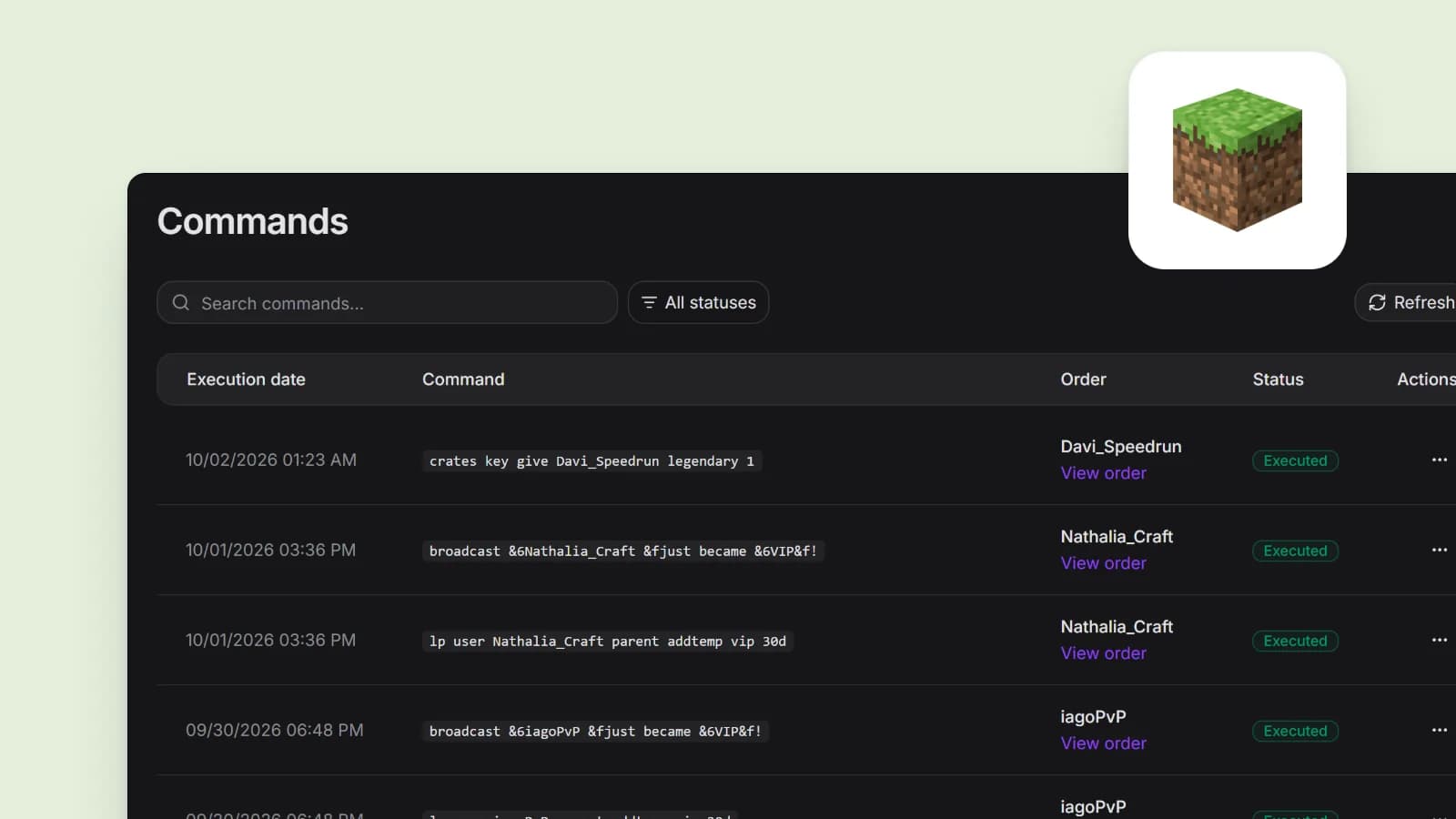
Delivery usually works through commands. You add to each product the command the server should run, and the server's connector runs it once the payment is approved.
On Gamecart, a command uses {identifier} in place of the player, as in lp user {identifier} parent addtemp vip 30d, and the value comes from what the buyer typed at checkout, such as their username. How the server connects depends on the game: a plugin for Minecraft and Hytale, or RCON for Minecraft and Source engine servers, with nothing to install. The server delivery guide covers each method.
Tip
Before you announce the store, buy a cheap product yourself and check that the command reached the server and that the player got the item.
6. Organize the catalog
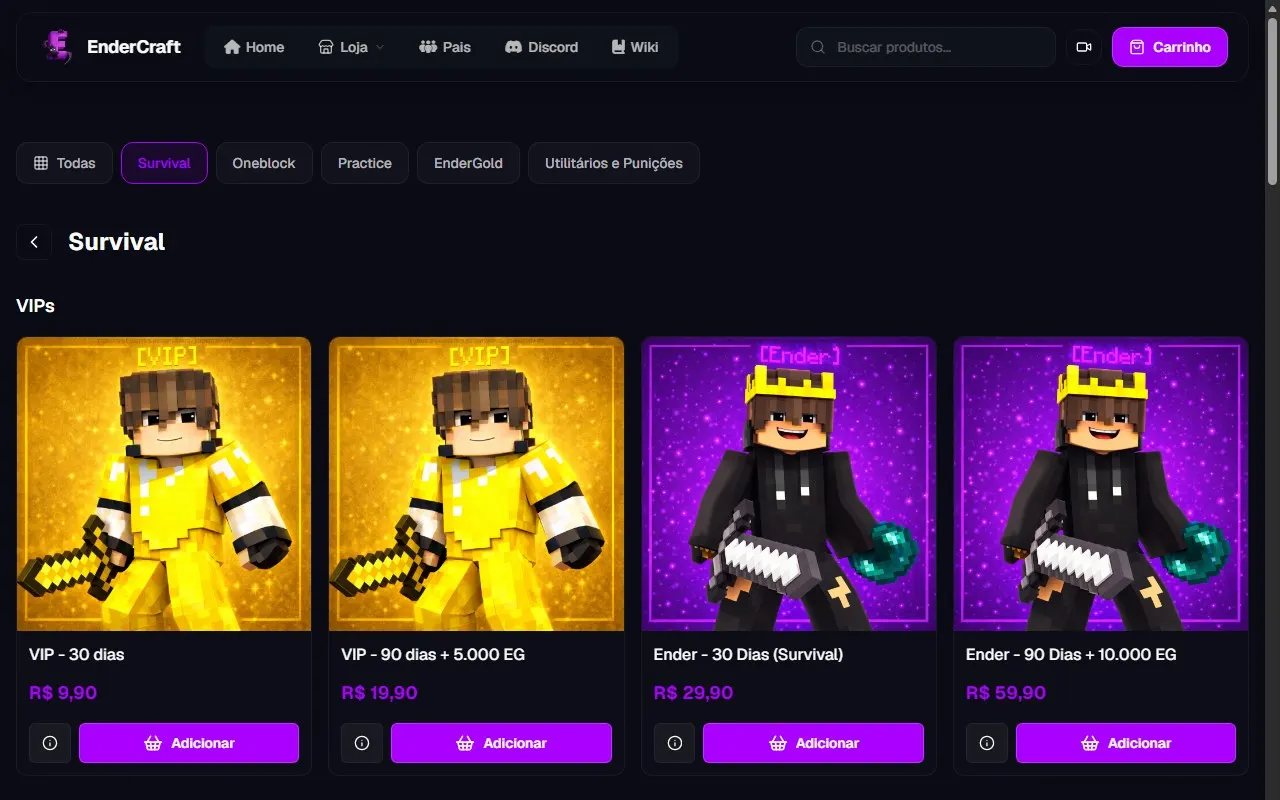
Group products by game mode or by type, use your own images and keep the names short. A player should see the difference between two ranks without opening each one.
7. Promote it without getting in the way
Put the store link on your Discord, on your website and behind an in-game command such as /store. Chat ads every few minutes tend to annoy the people who are playing. Show the store at the moments it makes sense, like when a player joins or right after an achievement.
Sources

About the author
Gamecart Team
The team behind Gamecart, the store platform for Minecraft, Hytale, FiveM, and other game servers.
Open your server store
Create a free Gamecart store, connect your server, and deliver purchases automatically.